Profile & content
Templates & saved layouts
Start from a ready-made template instead of a blank page, and save your own layouts to switch between views anytime.
You don't have to build your profile from scratch. The Vorlagen (Templates) button in the editor toolbar opens the Layout wählen (Choose layout) popup so you can start from a finished arrangement: "Start from a ready-made layout — the modules are arranged for you, you just fill in your content." On an empty tab you'll find the same entry point via Mit Vorlage starten (Start with a template).
The popup has two sections: Eigene (Yours — your saved layouts, Premium) at the top, and Vorlagen (Templates) below it with four ready-made layouts.
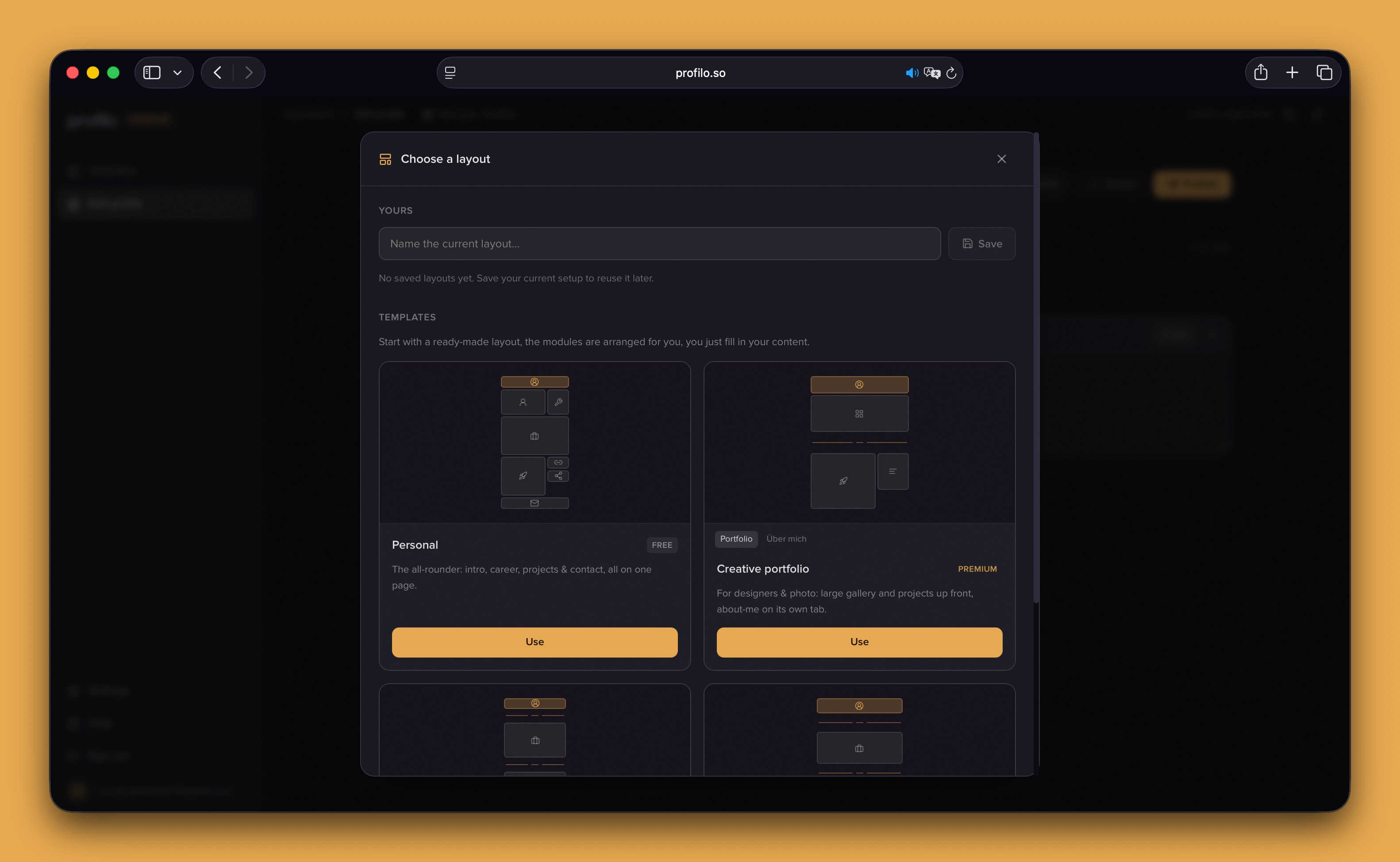
The four ready-made templates
Each template appears as a card with a mini preview of the arrangement, a name and a short description:
- Persönlich (Personal — Free) — The all-rounder on a single page: intro, career, projects and contact. Works on any plan.
- Kreativ-Portfolio (Creative portfolio — Premium) — For designers and photographers: a large gallery and projects up front, "About me" on its own tab.
- Lebenslauf (Résumé — Premium) — Classic professional: career, education, skills and certificates, plus a tab for more.
- Freelancer (Premium) — Sell your services: offer and references up front, a dedicated contact tab for inquiries.
Note: The Premium templates are unlocked for everyone during the current test phase, with no payment method needed. Otherwise, on the Free plan they appear locked with a Premium nötig (Premium needed) button, while Persönlich is always usable.
Browse multi-tab templates
Templates like Kreativ-Portfolio, Lebenslauf and Freelancer span several tabs. On their card you'll see small tab buttons above the name — click them to view each tab in the mini preview before you decide.
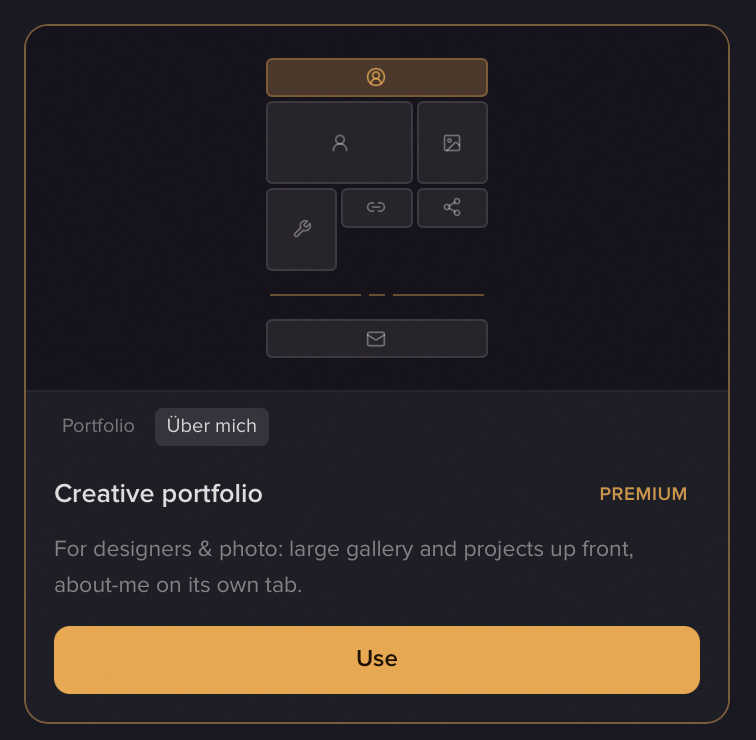
Use a template
- Open the editor and click Vorlagen in the toolbar (or Mit Vorlage starten on an empty tab).
- Pick a card, and browse the preview tab by tab if it has several.
- Click Verwenden (Use).
- If your draft already has content, the Layout ersetzen? (Replace layout?) dialog appears — confirm with Layout ersetzen (Replace layout) or back out with Abbrechen (Cancel). If your draft is still empty, the template applies right away.
- The editor now shows the template's tabs and modules. Fill in your content and publish.
Important: Templates supply the layout only — the modules come in empty, and you add your own text and images. Verwenden replaces your entire draft (all tabs, not just the current one). Your published page is untouched until you publish again — so you can try things out safely.
For how to fill the empty modules afterwards, see Build your profile and the All modules overview.
Save your own layouts (Premium)
Got an arrangement you want to keep, or park as a variant? In the Eigene section, give it a name in the Aktuelles Layout benennen… (Name your current layout…) field (up to 40 characters) and click Speichern (Save) — or press Enter. Unlike the ready-made templates, your layout is saved with all its content and appears as a card under Eigene, newest first.
This lets you keep several views and switch between them anytime without rebuilding:
- Switch: Click Verwenden on a saved card (again with the Layout ersetzen? prompt if your draft has content). The active layout shows Derzeit in Verwendung (Currently in use) instead of the button.
- Delete: Via the trash icon on the preview and the Layout löschen? (Delete layout?) dialog. This is permanent — but your published page stays untouched.
Note: You can save up to 20 of your own layouts. Once you hit the limit you'll see "Maximal 20 Layouts, lösche eins, um Platz zu schaffen." (Maximum 20 layouts, delete one to make room.) — delete one to save again. Saved layouts are a Premium feature (free for everyone during the test phase).
Related articles
Build your profile: add, arrange & fill modules
How to add modules, fill them with content and arrange your profile page with drag & drop — the complete editor workflow.
All modules explained
Every module on your profilo page at a glance – what it shows, the fields it has and which ones are Premium.
Getting started
From sign-up to a finished, published profile page in just a few minutes – your complete roadmap for getting started.