Getting started
Build your profile from your résumé
Upload your CV or LinkedIn profile as a PDF — profilo reads it with AI and fills the matching modules automatically.
You don't have to build your profile module by module. With CV import, you upload your résumé or LinkedIn profile as a PDF — profilo reads it with AI and suggests ready-made modules for experience, education, skills and more. You review everything before anything is added. It's the fastest way to a filled-out profile.
Starting the import
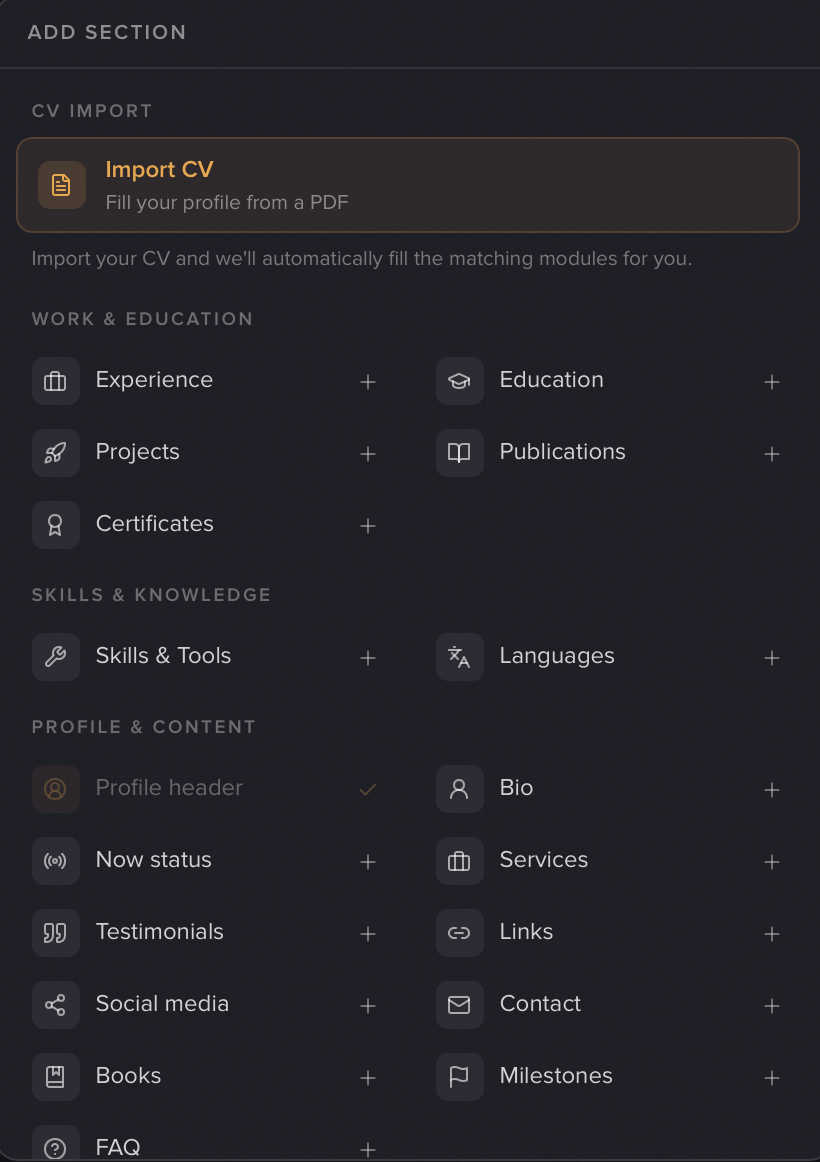
- In the Profile editor, open the Add panel.
- At the very top, under the heading CV import, click the highlighted card Import CV (subtitle "Fill your profile from a PDF").
- The Import CV / LinkedIn window opens.
Uploading the PDF
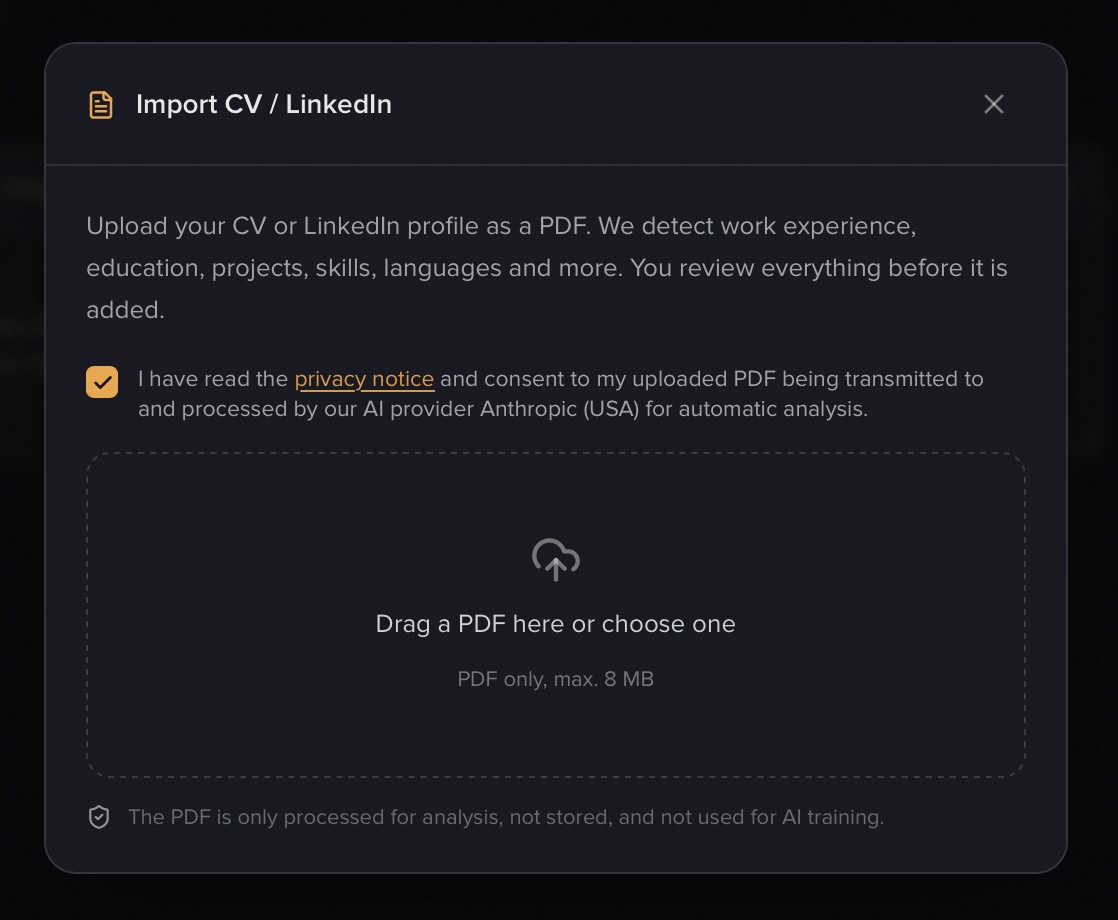
Before you can upload anything, you have to tick the privacy checkbox — it unlocks the upload field:
Note: "I have read the privacy notice and consent to my uploaded PDF being transmitted to and processed by our AI provider Anthropic (USA) for automatic analysis." The upload field stays disabled until the box is ticked.
Then drag your PDF into the Drag a PDF here or choose one field, or click it to pick a file. Only PDF is accepted, max. 8 MB.
Tip: Export your LinkedIn profile straight from LinkedIn as a PDF ("Save to PDF") and upload that file here.
After the upload, you'll briefly see Analyzing PDF … — it only takes a few seconds.
Reviewing and importing the detected data
profilo now shows you every detected section in an overview, grouped by module with the number of entries. Review them and remove anything that doesn't fit using the × or trash icon — individual entries or whole sections.
Experience and education are shown as a timeline: the organization is the parent entry, and multiple roles at the same company appear as positions underneath. You can remove a whole company or a single role independently.
Modules that already have content: Merge or Replace
If a target module already contains content, profilo shows a toggle in its header:
- Merge (default): "Existing content is kept, new items are added." Lists are appended, skills are merged by category, duplicate entries are removed.
- Replace: "Existing content is replaced by the import." — overwrites the whole module.
You set this per section. Modules that are still empty are simply created.
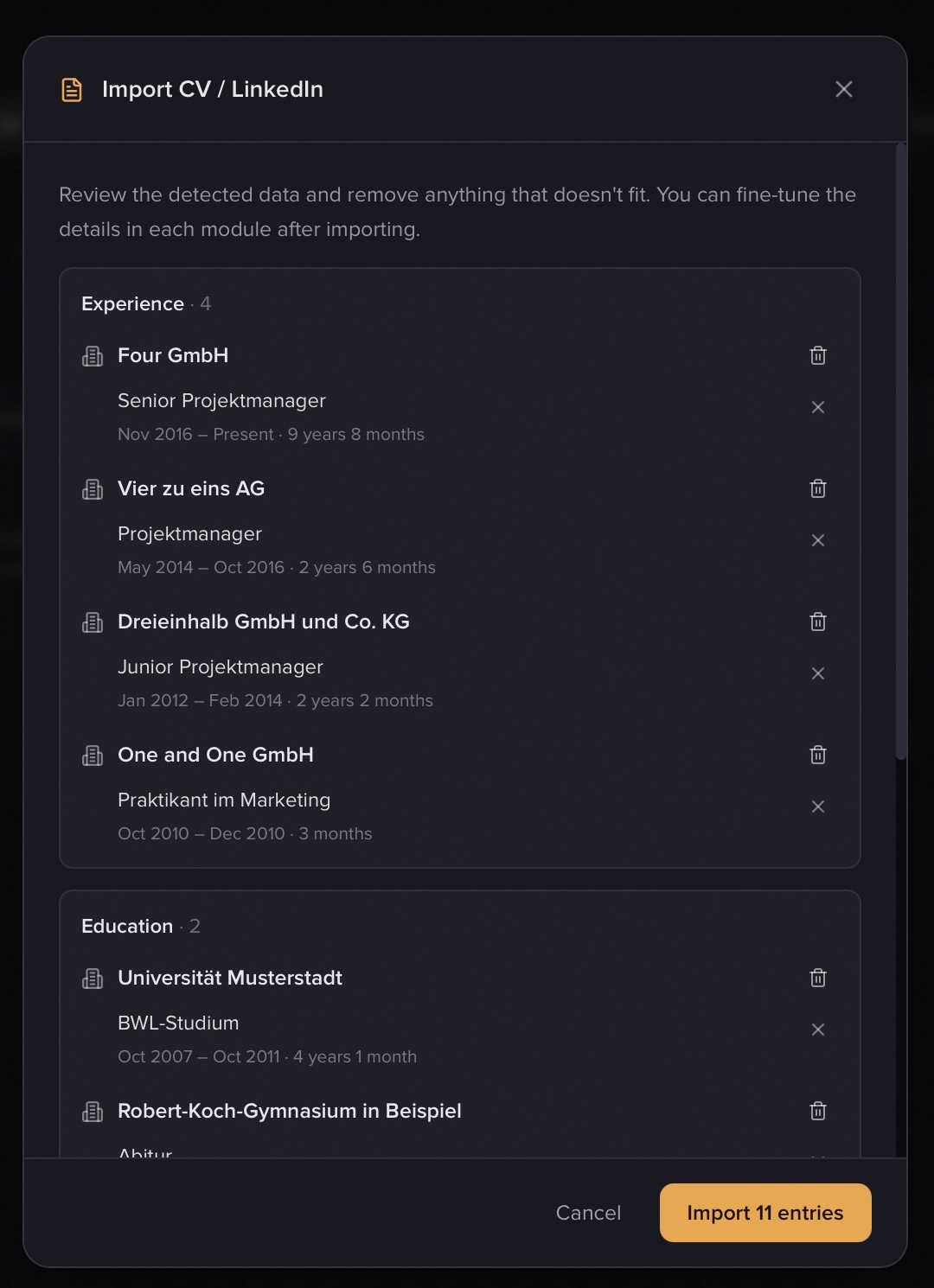
Finally, click Import X entries at the bottom. The matching modules now appear in the editor (missing ones are created automatically). If a target module lives on another tab, the editor jumps there.
Note: When you import, the content lands in the editor first — it isn't live yet. Fine-tune the details in each module, then Save and Publish. More on this under Build your profile.
What gets detected
From your PDF, profilo reads, among others: Experience, Education, Projects, Skills & tools, Languages, Links, Social media, Contact and a short Bio. With Premium, Publications and Certificates are added too.
Note: Publications and certificates are Premium modules. On the Free plan they're skipped during import — everything else is still imported. Premium is currently free for everyone during our test phase. For all the other modules, see All modules.
The content stays in the language of your document — profilo doesn't translate it. Awards and volunteering are intentionally not imported, because there's no matching module for them.
Privacy
Your PDF is transmitted for analysis to our AI provider Anthropic (USA). It is only processed for analysis, not stored, and not used for AI training. That's why the privacy checkbox is mandatory before uploading.
Limits and errors
- PDF only. DOCX, DOC, images or plain text aren't supported. Non-PDFs give the message "Please upload a PDF.".
- Max. 8 MB. Larger files are rejected with "The PDF is too large (max. 8 MB).".
- Scanned image PDFs often yield little or nothing — a text-based PDF works best. If the AI finds nothing, you'll see "No entries found.".
- Max. 12 imports per hour. After that you'll see "Too many imports in a short time. Please try again later." — wait a moment and restart with Try again.
Related articles
Build your profile: add, arrange & fill modules
How to add modules, fill them with content and arrange your profile page with drag & drop — the complete editor workflow.
All modules explained
Every module on your profilo page at a glance – what it shows, the fields it has and which ones are Premium.
Getting started
From sign-up to a finished, published profile page in just a few minutes – your complete roadmap for getting started.