Design
Design: mode, colors, style & corners
Set light/dark, accent color, style and corner radius for your profile page — with a live preview right in the editor.
How your profile page looks is set in the editor under the Design tab — right next to Content & Layout. There you pick light or dark mode, an accent color, a style, and the shape of the corners. A live preview on the right shows every change instantly.
Open the Design tab
- Open your page in the editor (via Edit profile in the dashboard).
- In the toolbar at the top you'll see a switcher with two tabs: Content & Layout and Design.
- Click Design (the tab with the palette icon).
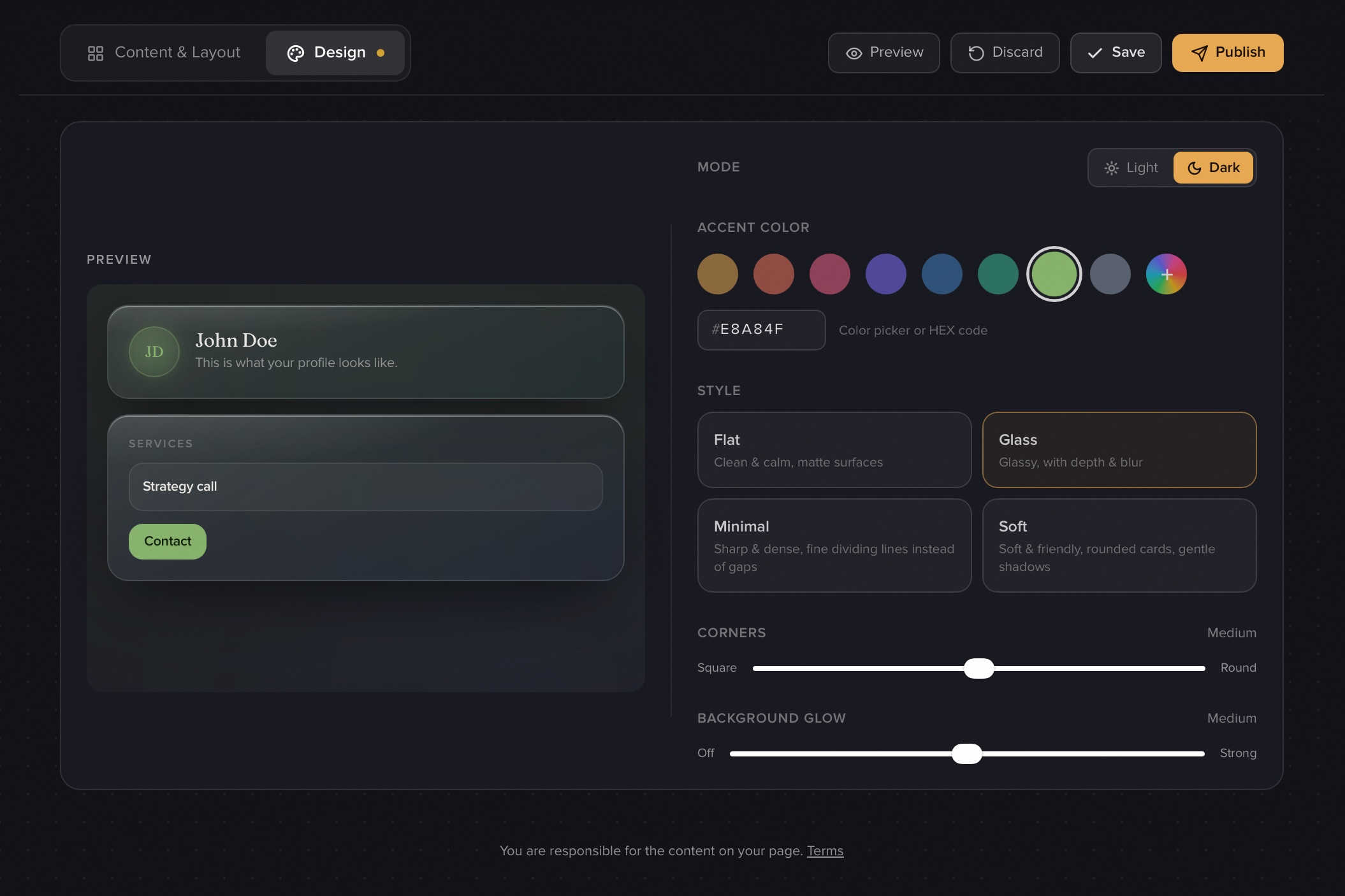
The Design panel opens: the controls on the left, a mini preview of your page on the right that re-renders the moment you change anything (on mobile the preview and controls stack).
Note: Design shares the same draft as Content & Layout. Changes only go live once you Save and Publish. More on that in Build your profile.
Mode: light or dark
At the very top under Mode, switch between Light (sun) and Dark (moon). Both are equal options — just pick whatever suits you.
The mode is included on the free plan. Every other design control below it is Premium.
Accent color
Under Accent color you set the color used for buttons, active elements and highlights.
- 8 presets: Amber, Coral, Rose, Indigo, Ocean, Teal, Sage and Slate. Click one of the round color swatches — the active one gets a white ring and the preview recolors instantly. (Hover a swatch to see its name.)
- Custom color: Need an exact shade? Click the 9th swatch with the rainbow plus to open the color picker, or type a HEX code into the field next to it (e.g.
E8A84F). The button text color (dark or white) is chosen automatically for legibility.
Style
The style decides how your page's cards feel. There are four:
- Flat — clean & calm, matte surfaces. The default.
- Glass — glassy, with depth & blur. Translucent cards that let the background and glow shine through.
- Minimal — sharp & dense, fine dividing lines instead of gaps. Always square.
- Soft — soft & friendly, rounded cards with gentle shadows.
Click one of the cards in the 2×2 grid; the active one gets an accent border and the preview re-renders.
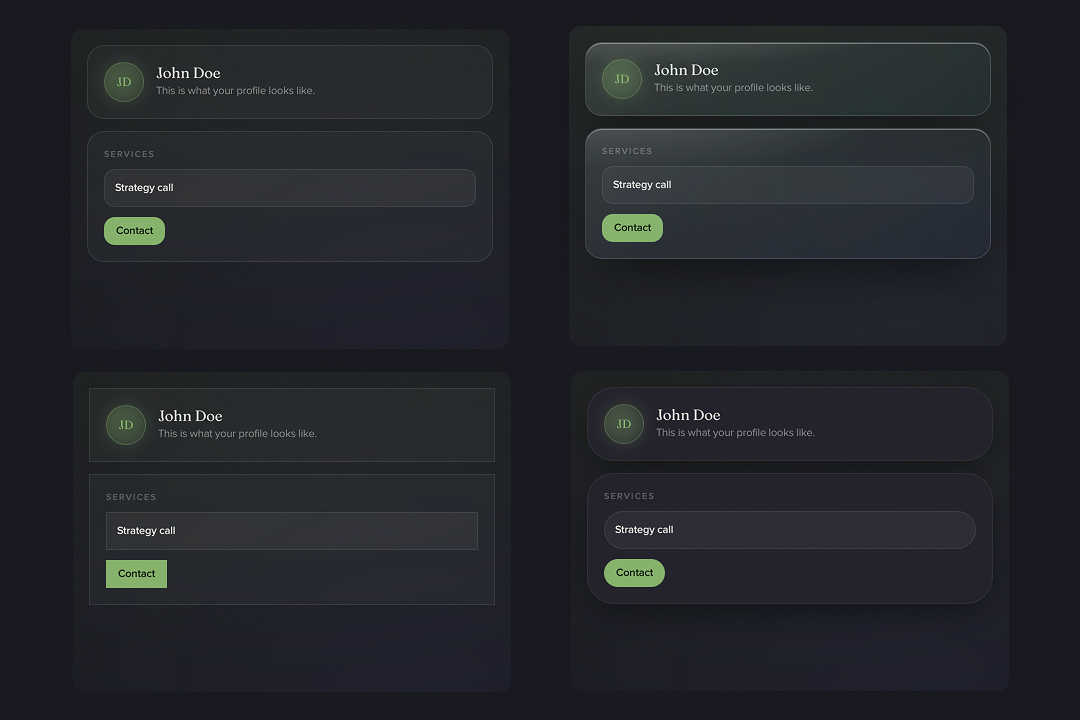
Note: This style is called Glass (German Gläsern). If you see "Liquid Glass" mentioned somewhere else — it's the same style, just under its old name.
Corners
With the Corners slider you set how rounded the edges are — from Square (left) to Round (right). The small label on the right shows Square, Medium or Round. The cards and the sample button in the preview follow along live.
Note: With the Minimal style the corner slider is hidden — Minimal is always square, so the slider would do nothing here.
Background glow
At the very bottom, Background glow controls the intensity of the soft glow behind your page — from Off to Strong (the label shows Off, Subtle, Medium or Strong). Under the Glass style the glow reads a bit stronger, because the glass refracts it.
Free, Premium & saving
The mode (light/dark) is included on the free plan. Accent color, style, corners and background glow are Premium — on the free plan that block is dimmed with the note: "Accent color, style, corners & background are Premium. Free can choose between light and dark."
Note: During the current test phase, Premium is unlocked for everyone at no cost — you can try every design control without a payment method. More on that in Premium & cancellation.
If you switch from Premium back to Free, your public page falls back to the default design (Flat, default accent, default corners and glow) — only your light/dark choice stays. Your settings aren't deleted: the moment you upgrade again, your look is back instantly.
One last step: click Save and then Publish so your new design actually goes live.
Tip: Want to add your own logo and a tidy footer on top of this? You'll find that in Custom branding.
Related articles
Build your profile: add, arrange & fill modules
How to add modules, fill them with content and arrange your profile page with drag & drop — the complete editor workflow.
Premium, billing & cancellation
What Free and Premium include, what Premium costs, how to upgrade or cancel – and what happens to your content when you downgrade.
Your branding: logo, footer & imprint
Make your profilo page yours: a custom logo instead of the profilo wordmark, plus a footer for imprint and privacy links.