Profile & content
Tabs: split your profile across pages
Organize your profilo profile into tabs like "About", "Portfolio" and "Contact" – add, rename, reorder and delete them in the editor.
As your profile grows, one long page quickly gets cluttered. With tabs you can split your profile into several sections – for example "About", "Portfolio" and "Contact". Each tab is its own grid with its own tiles, and visitors switch between them via a small bar at the top.
Tabs are a Premium feature. During the current test phase, Premium is unlocked for everyone for free (no payment method needed) – so you can try tabs out right now. More on that under Premium & subscription.
Where to find tabs
You manage tabs in the editor under "Profil bearbeiten" – in the Inhalt & Layout mode. Right below the toolbar you'll see a browser-style tab bar. Each tab shows its name and a small counter with the number of its modules. Your quota appears on the right, e.g. "3/10".
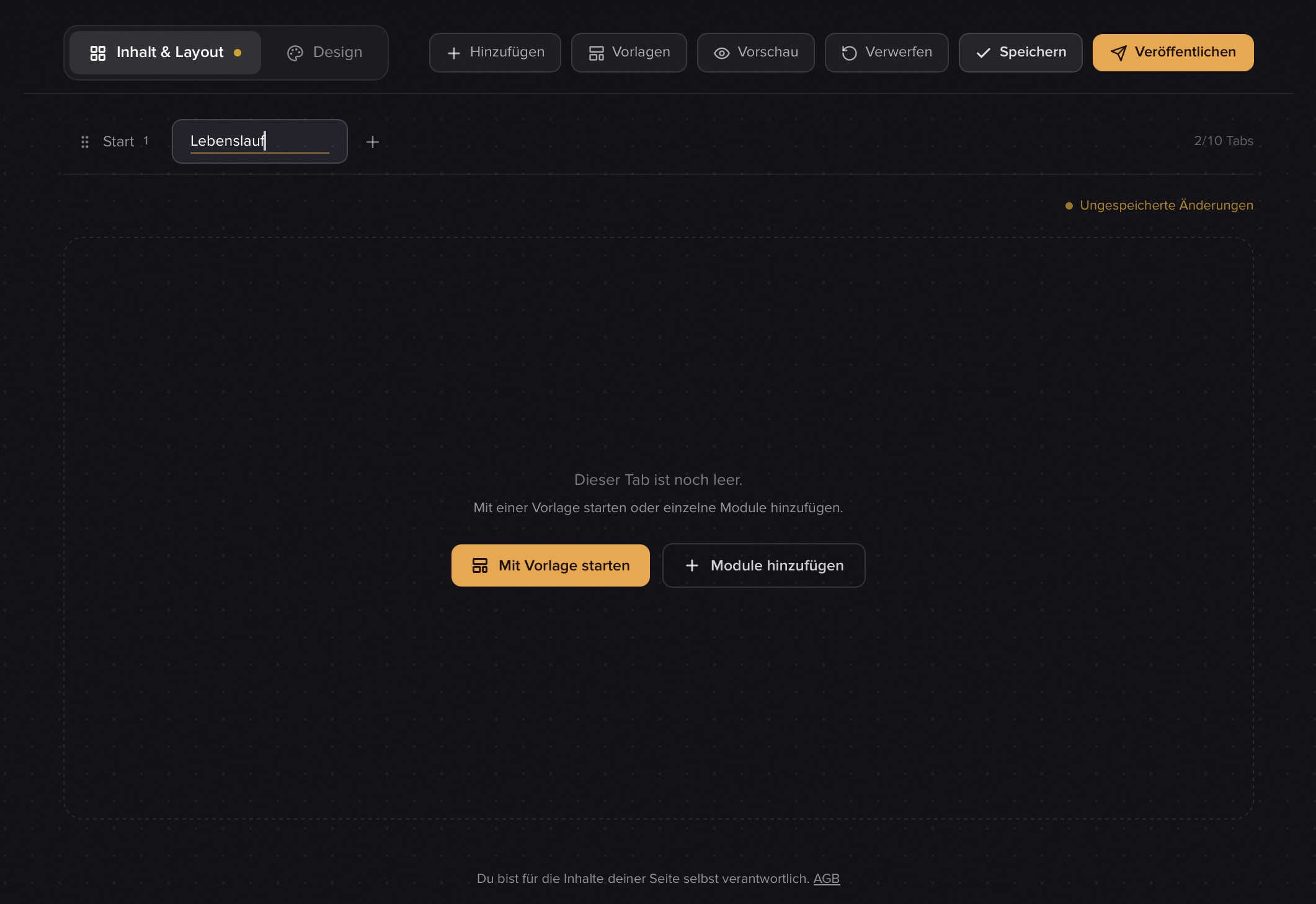
Note: The first tab is named Start by default. It can't be deleted and always stays the first tab.
Adding a tab
- Make sure the mode at the top is set to Inhalt & Layout.
- Click the "+" at the end of the tab bar ("Neuen Tab hinzufügen").
- Type a name and press Enter.
- The new tab is empty – add modules to it as usual (see Build your profile).
Renaming a tab
Double-click the name of a tab. A small input field opens right inside the tab. Type the new name (max. 24 characters) and confirm with Enter – or cancel with Escape. Clicking elsewhere confirms too.
Moving tiles between tabs
You can move a finished tile to another tab at any time:
- Grab the tile by its header (the strip with the grip icon).
- Drag it upward over the tab bar onto the target tab.
- The target tab lights up briefly – let go, and the tile lands there.
Note: You can't drop a Profil-Header onto a tab that already has one – only one header is allowed per tab.
Reordering tabs
Grab a tab by its grip icon and drag it to the position you want in the bar. A line shows you where it'll snap into place. This sets the order in which visitors see the tabs.
Deleting a tab
Hover over a tab (not the first one) – a "×" appears. When you click it, profilo asks: "Tab löschen?" (Delete tab?).
No need to worry about your content: when you delete a tab, all of its modules automatically move to the first tab ("Tab löschen (Module wandern zum 1. Tab)"). Nothing is lost – you just rearrange them afterwards.
Quota: how many tabs?
| Plan | Tabs |
|---|---|
| Free | 1 tab |
| Premium | up to 10 tabs |
On the Free plan, exactly one tab is possible; the "+" then turns into a locked Premium pill with the note "Mehrere Tabs sind ein Premium-Feature" (multiple tabs are a Premium feature). With Premium you get the full quota – the "N/10" indicator shows how many you're already using.
Tip: During the test phase all 10 tabs are unlocked for free. Go ahead and try out a structure and see what feels right for you.
What visitors see
Tabs only appear on your public page once you publish – more on that under Publishing & going live.
- If your profile has several tabs, the page shows a pill bar of tab names at the top. A click switches the section, and the page smooth-scrolls to the top.
- On mobile, the tabs collapse into a compact dropdown menu: a pill at the top with the active tab and a chevron; a tap opens the list of all tabs.
- If your profile has only one tab, no bar appears at all.
Note: Empty tabs still show up as sections on your page. Delete unused tabs or fill them with content – the publish dialog warns you about empty tabs.
Related articles
Build your profile: add, arrange & fill modules
How to add modules, fill them with content and arrange your profile page with drag & drop — the complete editor workflow.
Premium, billing & cancellation
What Free and Premium include, what Premium costs, how to upgrade or cancel – and what happens to your content when you downgrade.
Publish & go live
How to make your profilo public — the difference between Save, Preview and Publish, explained simply.