Profile & content
Embeds: YouTube, Spotify, Loom, Figma & Calendly
Embed YouTube, Spotify, Loom, Figma or Calendly directly in your profilo – paste a link, done.
With the Embed module (Premium) you embed content from exactly five services directly into your page: YouTube, Spotify, Loom, Figma and Calendly. You just paste the link – profilo detects the service automatically and shows the matching widget. That way your showreel plays, your playlist runs, or visitors book a slot right away without leaving your page.
Note: Embed is a Premium module. During the current trial phase, Premium is unlocked for everyone for free (no payment method required) – so you can try it right now.
How to add an embed
- In the editor, click Hinzufügen (Add) at the top and pick the Embed module under Individuell (Custom).
- Hover the new tile and click Bearbeiten (Edit).
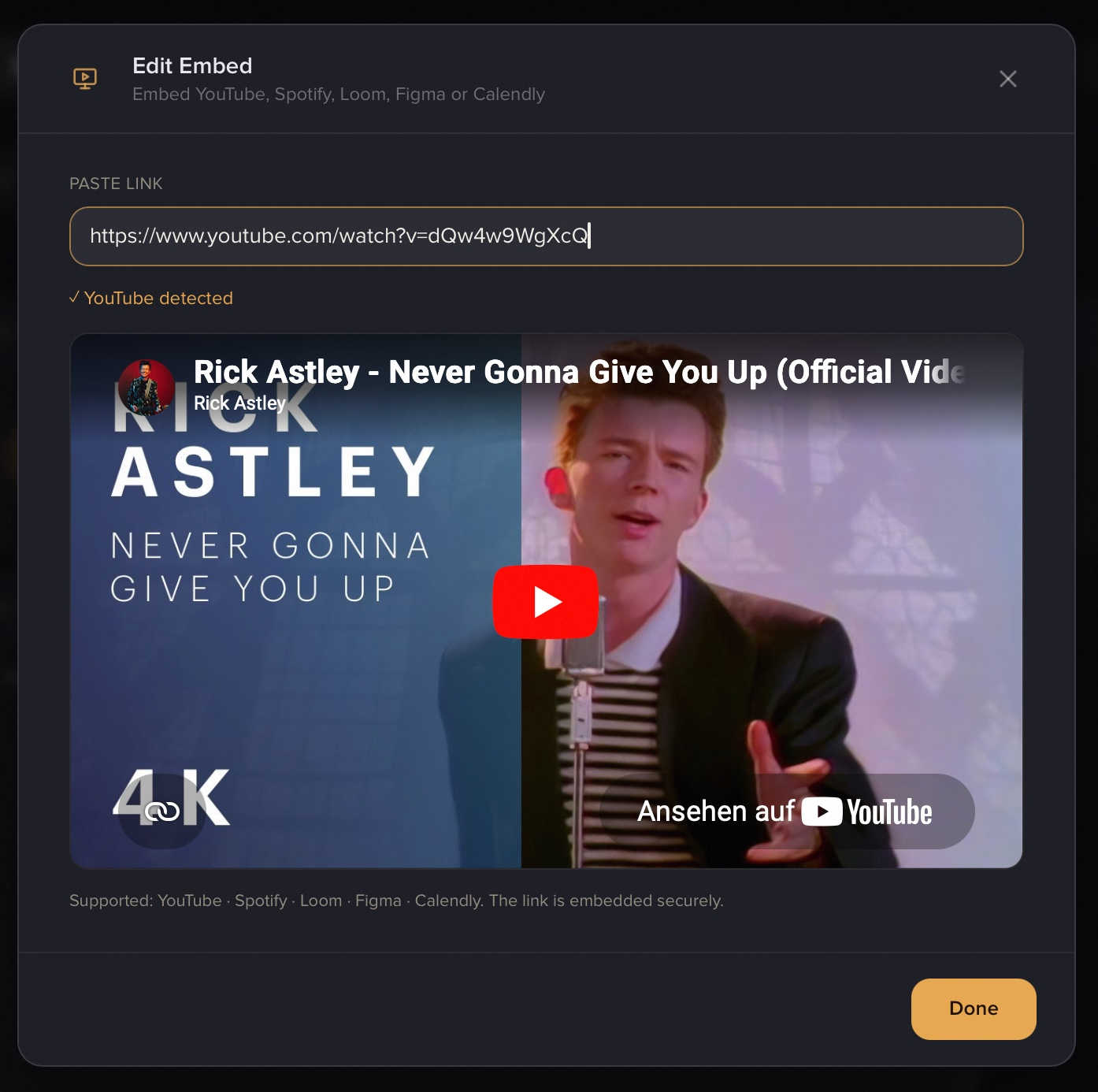
- Copy the link from the respective service (see below) and paste it into the Link einfügen (Paste link) field.
- As soon as "✓ … detected" appears (e.g. "✓ YouTube detected"), the link is good – you'll see a live preview right below it.
- Speichern (Save), then Veröffentlichen (Publish), so the embed goes live.
If you instead see "This link isn't supported", it's either not one of the five services or the wrong link format. In that case, use one of the links described below.
Where do I find the right link?
YouTube
Open the video → Share → copy the link (youtube.com/watch?v=… or youtu.be/…). The "Embed" link works too.
Spotify
Open a song, album or playlist → ⋯ (More) → Share → Copy link (open.spotify.com/…). Spotify's "Embed" link works as well.
Loom
Open the video → Share → Copy link (loom.com/share/…).
Figma
Open the file → Share → set link access to "Anyone with the link → can view" → Copy link. The "Get embed code" link (embed.figma.com/…) works too.
Important: If the Figma file isn't set to "Anyone with the link → can view", the embed stays empty. This is the most common pitfall with Figma embeds.
Calendly
Open the event → Share → Copy link (calendly.com/your-name/…).
Size & display
Embeds are square and can be resized to 1×1, 2×2 and 3×3 – just drag the tile to the size you want in the grid. For a YouTube video or a Calendly booking, 2×2 or 3×3 usually works best, while a compact playlist looks fine at 1×1.
You can add the Embed module multiple times – so you can easily place a video, a playlist and a booking link side by side.
Privacy
Embedded content is loaded directly from the respective service (YouTube, Spotify, etc.). That service may set cookies in the process – this is outside of profilo's control. Keep that in mind when embedding sensitive content.
For an overview of every building block, see All modules. To learn how to add your own images and galleries, see Images & media.
Related articles
All modules explained
Every module on your profilo page at a glance – what it shows, the fields it has and which ones are Premium.
Images, avatar & uploads
Crop your profile photo, add images & galleries, upload logos — plus the allowed formats, sizes and limits.
Tabs: split your profile across pages
Organize your profilo profile into tabs like "About", "Portfolio" and "Contact" – add, rename, reorder and delete them in the editor.