Publish & share
Visibility & password protection
Decide who sees your profile – public, offline or password-only (Premium). Here's how to set up password protection.
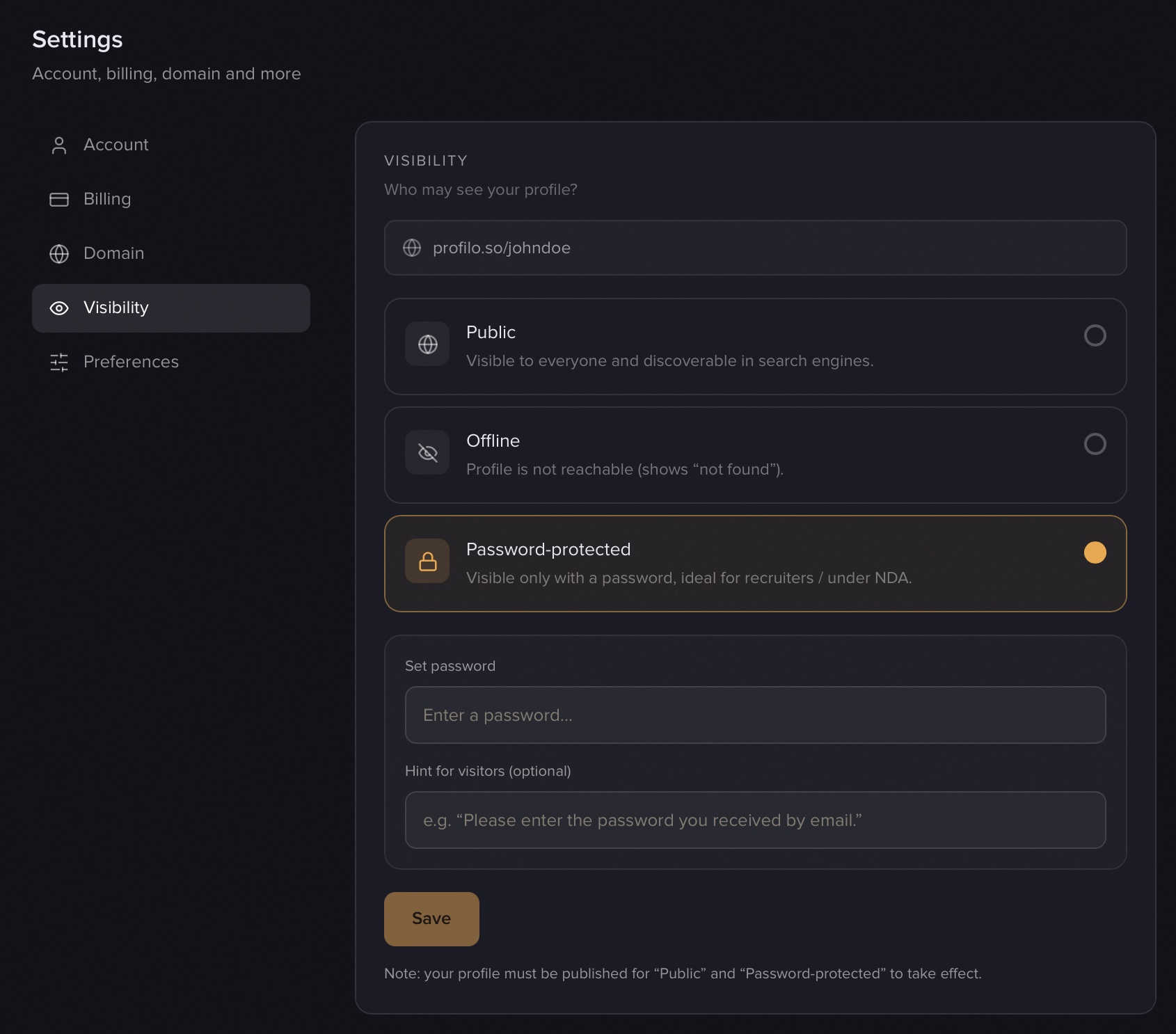
Under Settings → Visibility you decide who may see your published profile. You can also reach this area from the Sichtbarkeit (Visibility) card on the dashboard overview, or via Sichtbarkeit verwalten (Manage visibility) in the editor bar.
The three options
- Öffentlich (Public) – visible to everyone and discoverable in search engines. This is the default.
- Offline – your profile isn't reachable (shows "not found"). Your content stays saved and is live again the moment you switch back to Öffentlich.
- Passwortgeschützt (Password-protected) (Premium) – visible only with a password, ideal for recruiters or under NDA.
Pick an option and click Speichern (Save) – "Sichtbarkeit gespeichert." (Visibility saved.) confirms the change.
Important: "Öffentlich" and "Passwortgeschützt" only take effect when your profile is published. See Publishing & going live for how that works.
Offline instead of deleting
"Offline" only takes your profile off the web temporarily – nothing is lost. Visitors to your link see the standard "page not found" page, and the moment you switch back to Öffentlich, everything is back exactly as it was. Handy while you prepare bigger changes.
Setting up password protection (Premium)
Password protection is a Premium feature.
Note: During the test phase Premium is unlocked for everyone at no cost – so you can try password protection right now without a payment method.
- Choose the Passwortgeschützt (Password-protected) option.
- Under Passwort festlegen (Set password), set a password (at least 4 characters).
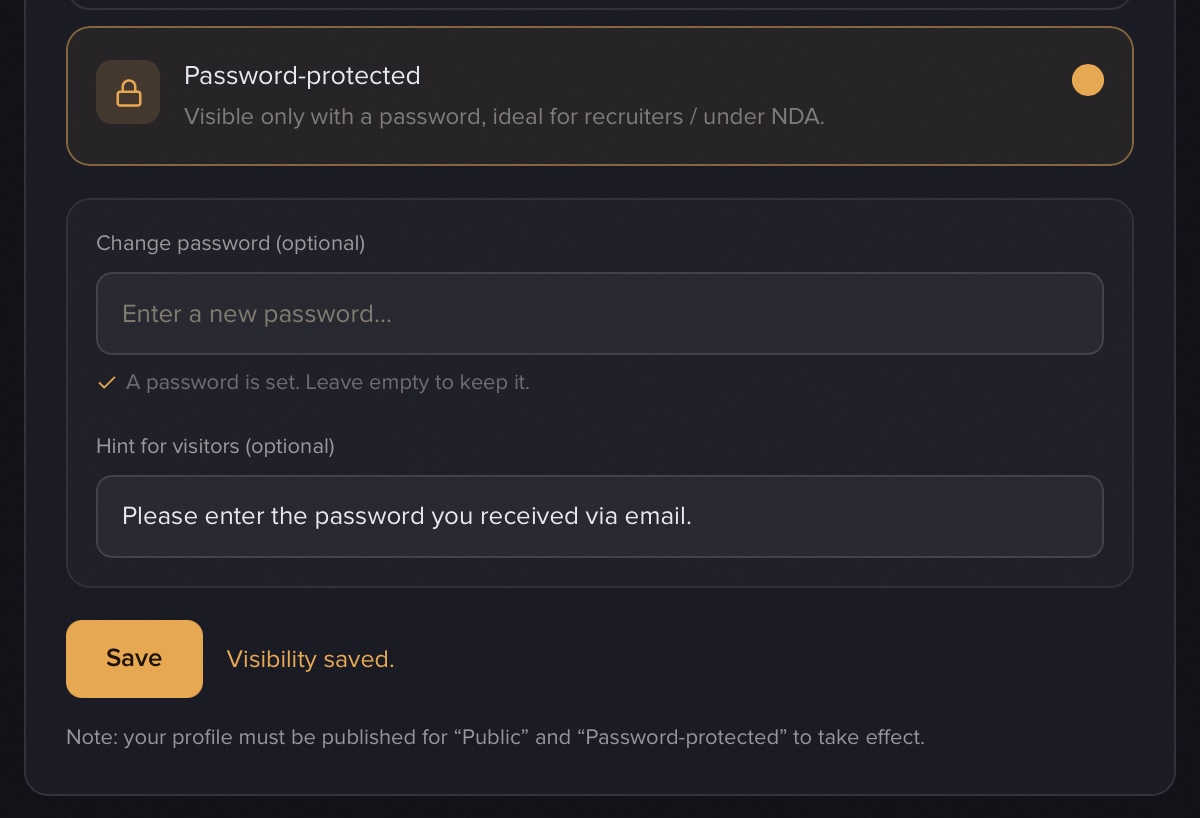
- Optional: add a Hinweis für Besucher (Hint for visitors) – e.g. "Please enter the password you received by email." It appears on the lock screen above the input field.
- Click Speichern (Save). A green note "Ein Passwort ist gesetzt." (A password is set.) confirms everything is in place.
- Make sure your profile is published so the protection takes effect.
Then share the password directly with the people who should get access.
Changing the password later
Once a password is set, the field reads Passwort ändern (optional) (Change password, optional) with the note "Ein Passwort ist gesetzt. Leer lassen, um es zu behalten." (A password is set. Leave empty to keep it.) Type a new password to replace it – or leave the field blank if you only want to edit the hint. To remove password protection entirely, simply switch back to Öffentlich or Offline.
What visitors see
For a password-protected profile, visitors first get a lock screen headed Privates Profil (Private profile) with your hint (if set), an input field and a Ansehen (View) button. Only after the correct password does the page reload and show the full profile.
- After a correct entry the device stays unlocked for 14 days – visitors don't have to re-enter the password on every visit.
- As the logged-in owner you always see your own profile without the lock. To test the visitor view, open your link in a private/incognito window.
- Your name, bio and content are not exposed before entry – only your username and the hint are visible.
Search engines & privacy
Only public profiles are indexed by search engines. Offline and password-protected pages don't show up on Google & co. If you instead want to actively spread your profile, Sharing & QR business card has you covered.
Related articles
Publish & go live
How to make your profilo public — the difference between Save, Preview and Publish, explained simply.
Premium, billing & cancellation
What Free and Premium include, what Premium costs, how to upgrade or cancel – and what happens to your content when you downgrade.
Share: link, QR card & Wallet
Share your profile link, design and download a QR business card, add it to Apple Wallet — plus the free, no-login business card tool.