Account & plan
Account: login, username & password
Manage your email, username, password, dashboard language and account deletion in Settings.
You manage everything about your account from the dashboard under Einstellungen (Settings). The page has a sidebar with five tabs: Account, Abrechnung (Billing), Domain, Sichtbarkeit (Visibility) and Einstellungen (Preferences). This article covers the Account tab (email, username, password, delete account) and the dashboard language. For the other tabs, see Premium & plan and Manage visibility.
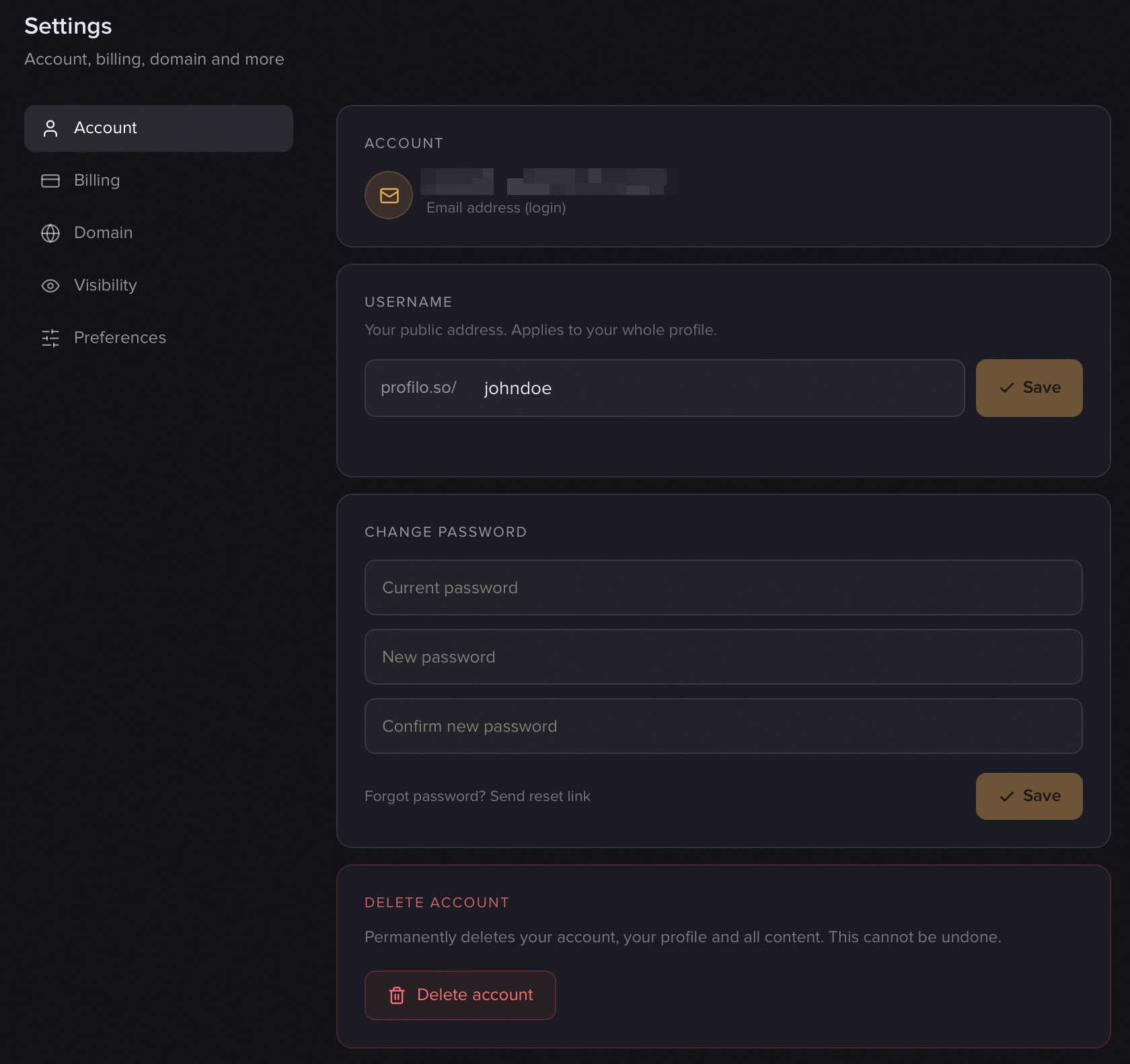
Email address (login)
This is the email you log in with. It's private and is not shown to visitors of your profile page – only you see it in Settings.
Note: The login email currently cannot be changed in the app. If you need to switch it, get in touch with us.
Change your username
Your username determines your public address profilo.so/yourname. Change it under Einstellungen → Account in the Username card.
Here's how:
- Open Einstellungen → Account (the tab is open by default).
- In the Username card, clear the field and type your new name. Allowed: 3–30 characters, only lowercase
a–z, digits0–9, plus-and_. Invalid characters are stripped automatically as you type. - Wait for the green "Verfügbar." (Available) check. If you see "already taken" or "reserved", pick another name.
- Confirm the warning (see below) and click Speichern (Save). You'll then see "Saved. Your new address: profilo.so/yourname".
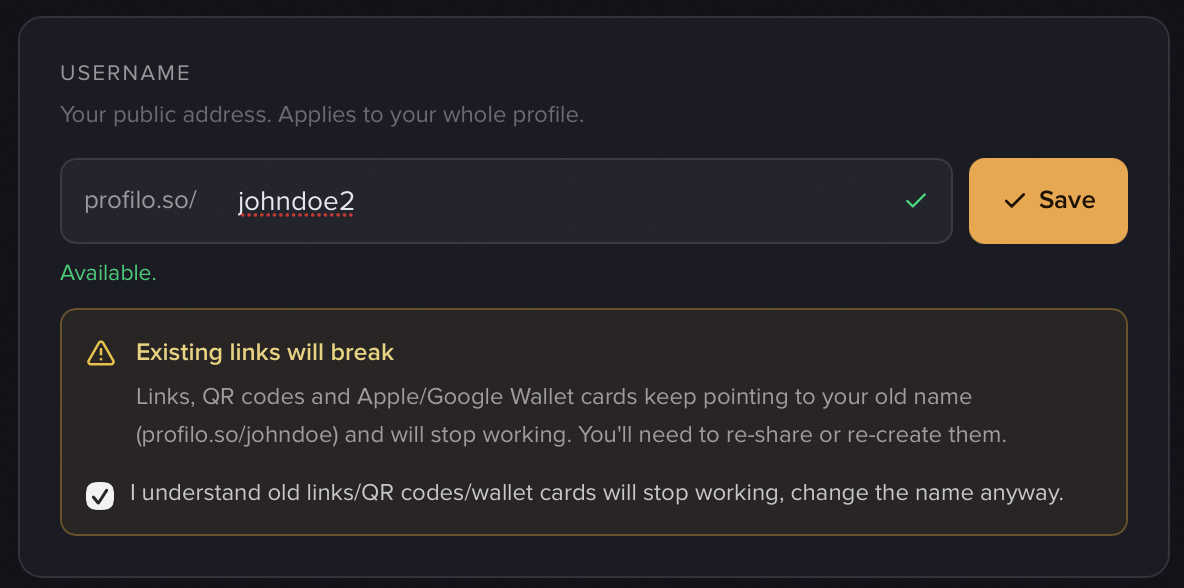
Caution – existing links will break. Changing your username changes your entire link. Already-shared links, QR codes and Apple/Google Wallet cards will keep pointing at your old name and will no longer work afterwards. That's why the amber "Bestehende Links brechen" (Existing links will break) box appears: you have to tick the checkbox ("I understand that old links/QR codes/Wallet cards will stop working …") before Speichern becomes active. You'll then need to re-share or re-create those items – see Sharing & QR card.
Change your password
Under Einstellungen → Account you'll find the Passwort ändern (Change password) card:
- Enter your Aktuelles Passwort (current password) – for security we briefly re-authenticate you.
- Type a Neues Passwort (new password, at least 6 characters) and repeat it in Neues Passwort bestätigen (confirm new password).
- Click Speichern (Save). On success you'll see "Password updated."
Forgot your password?
If you don't know your current password (e.g. you forgot it), the form above won't work – it needs the old password. Instead, click the small link "Passwort vergessen? Reset-Link senden" (Forgot password? Send reset link) at the bottom of the card. We'll email a reset link to your login address so you can set a new password.
Tip: Not logged in at all? Use "Forgot password?" directly on the login page – it sends the same reset link.
Switch the dashboard language
You set the language of your dashboard and editor under Einstellungen → Einstellungen (the last tab) in the Sprache (Language) card. Pick 🇩🇪 Deutsch or 🇬🇧 English – the dashboard reloads in the new language immediately and the setting applies across all your devices.
Note: This only changes the language of your dashboard and editor – not the language of your public profile page. Your page appears to visitors in the language you maintain it in.
Delete your account
At the very bottom of the Account tab is the red-bordered Account löschen (Delete account) card:
- Click Account löschen (Delete account). A confirmation box opens.
- Type the word DELETE exactly into the field. (On a German interface the word is LÖSCHEN.)
- Click Endgültig löschen (Delete permanently) – or Abbrechen (Cancel) if you change your mind.
Caution: Deletion is permanent and immediate. Your profile, all modules and content, your public page and your uploaded images are removed for good, your username becomes free again, and you're signed out. There is no undo and no grace period. If you only want to end your Premium subscription, that's a different thing – see Premium & plan.
Related articles
Premium, billing & cancellation
What Free and Premium include, what Premium costs, how to upgrade or cancel – and what happens to your content when you downgrade.
Visibility & password protection
Decide who sees your profile – public, offline or password-only (Premium). Here's how to set up password protection.
Share: link, QR card & Wallet
Share your profile link, design and download a QR business card, add it to Apple Wallet — plus the free, no-login business card tool.