Publish & share
Share: link, QR card & Wallet
Share your profile link, design and download a QR business card, add it to Apple Wallet — plus the free, no-login business card tool.
Your profile is only useful once people can actually find it. profilo gives you several ways to spread your link — online with a click, and offline as a QR code or business card. The one requirement is a published page.
Sharing your link
You'll find your public link profilo.so/yourname in several places in the dashboard:
- In the share center (the Your link card on the dashboard overview): Copy puts the full address on your clipboard, and View opens your profile in a new tab.
- In the dashboard's top bar — the same copy and view icons are pinned there on every page.
Right after you publish, the Your profile is live! popup also appears, with buttons to share on X, LinkedIn and WhatsApp plus a Create QR code link that takes you straight into the QR designer.
Note: Until you've set a username, the share center shows "Not available yet." Learn more under Account & username.
QR business card (Premium)
With the QR business card you design a print-ready card with a QR code to your profile — perfect for networking, events, or simply for printing.
Premium: The QR business card is a Premium feature. During the current test phase it's unlocked for everyone at no cost. More under Plans & cancellation.
Here's how:
- In the dashboard, open Quick actions and click the QR business card tile ("Design and download a card with a QR code").
- In the Create QR business card window, set the Name (up to 40 characters) and Subtitle (up to 48 characters). Both fields are prefilled with your profile details.
- Under Design, pick one of 6 background designs: Mitternacht, Graphit, Bernstein, Indigo, Salbei or Porzellan. The Preview updates live.
- Download it — either the whole card via Download card as PNG, or just the code via QR code only (PNG).
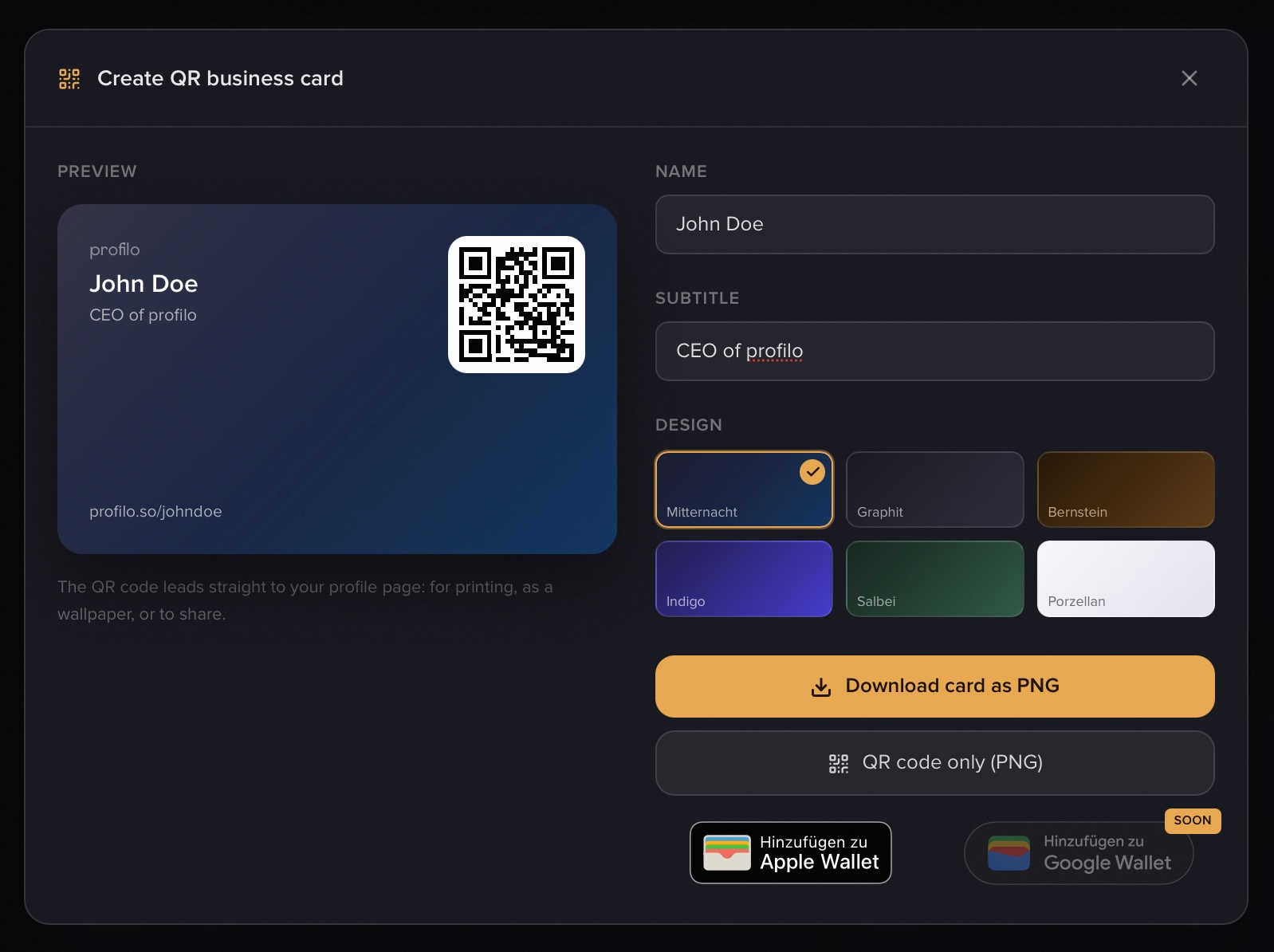
Note: The QR code always points to your profile (
profilo.so/yourname). The name, subtitle and design are purely cosmetic and don't change where the code leads.

Add to Apple Wallet (Premium)
From the same window you can add your card as a pass to Apple Wallet — so your QR code is always with you on your iPhone. Just tap Add to Apple Wallet; the pass then opens in Apple Wallet.
Premium: Apple Wallet is Premium and free for everyone during the test phase.
Google Wallet is planned and coming soon — the button is already visible in the window, but still marked "Soon."
Free business card tool (no login)
Want a digital business card without creating a profile? At profilo.so/visitenkarte you'll find the business card generator — completely free and no account needed:
- Enter a Name, Subtitle and optionally a Link (e.g. your website).
- Pick one of the 6 designs and check the preview.
- Download the card as a PNG — and, if you entered a link, optionally just the QR code too.
Here the QR code points to the link you typed, not to a profilo profile. Without a link, the card has no QR code.
When your username changes
If you change your username, your profile address changes too. Any QR codes you've already printed and Wallet cards you've handed out will then lead nowhere and stop working. In that case, simply create a new QR business card.
Related articles
Publish & go live
How to make your profilo public — the difference between Save, Preview and Publish, explained simply.
Account: login, username & password
Manage your email, username, password, dashboard language and account deletion in Settings.
Premium, billing & cancellation
What Free and Premium include, what Premium costs, how to upgrade or cancel – and what happens to your content when you downgrade.